A luks encrypted disk partition is great. The only thing that can bug you from time to time is that you have to specify the key before you can use it. Or maybe, if you try to mount the volume with
Wouldn’t it be great, if you could use a real key to unlock your encrypted volume? Not a keyfile, but a physically existent key like the ones you use to unlock your front door?!
Well, it’s not actually a key, but these LaCie USB Flash Drives come very close:
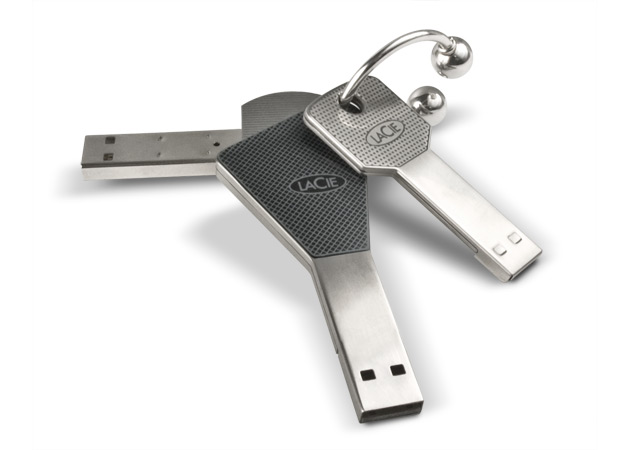
This article will show you, how to generate a random key for your luks encrypted volume, hide it on any USB flash drive and use udev to unlock and mount your luks volume whenever you plug this flash drive into a USB port
1. Generating a random keyfile
First, we need a random keyfile. Linux normally comes with two different random number generators: A blocking one called /dev/random and its non-blocking counterpart /dev/urandom.
The size of your keyfile and which RNG you use is totally up to you. Quite often you’ll find tutorials, that recommend something like
dd if=/dev/urandom of=secretkey bs=512 count=4
which generates a 2048byte or 214bit keyfile. For more the paranoid under us:
dd if=/dev/random of=secretkey bs=1 count=4096
which generates a 4096byte or 215bit keyfile. Notice that this uses the non-blocking RNG /dev/random and therefore can take quite some time (5mins+) depending on the current filling degree of the entropy pool.
2. Adding keyfile to LUKS-Volume
Adding this keyfile to your existing luks volume is no big deal
# cryptsetup luksAddKey /dev/md0 secretkey
Enter any LUKS passphrase:
Verify passphrase:
key slot 0 unlocked.
Command successful.
where /dev/md0 of course is the path to your luks device or partition
3. Hiding key
You could now just copy this keyfile to your USB drive as you can do it with any other file. But someone looking for the key would easily find it. So we’ll hide the key directly between MBR and the first partition.
WARNING: You should only follow this step if you know what you are doing – it can cause data loss and damage your partitions or MBR on the stick!
If you have a bootloader installed on your drive you have to adjust the values, e.g. Grub needs the first 16 sectors, so you would have to replace seek=4 with seek=16; otherwise you will overwrite parts of your Grub installation. When in doubt, take a look at the first 64 sectors of your drive and decide on your own where to place your key.
Optional:
dd if=/dev/usbstick of=64sectors bs=512 count=64  # copy first 64 sectors
ghex2 64sectors                                   # determine free space
Now you can write your key to the disk:
dd if=secretkey of=/dev/usbstick bs=512 seek=4
You should not simply use rm to delete the keyfile because rm only unlinks it from your filesystem (it would still be left physically intact). If everything went fine you can overwrite and delete your temporary secretkey with
shred --remove --zero secretkey
4. Udev Auto-Magic
We need to achieve two things: First, we have to make sure our USB drive containing the key can always be found under the same name. Second, we need to execute a shell script that unlocks the luks volume and mounts it whenever the USB drive is plugged into a USB port. This can be done with a small udev-rule
BUS=="usb",
KERNEL=="sd*",
ATTRS{manufacturer}=="laCie",
[...]
SYMLINK+="usbkey%n",
RUN+="/usr/local/bin/unlock-luks"
A tutorial on how to write udev-rules would go way beyond the scope of this article. Notice the highlighted lines: SYMLINK+="usbkey%n" ensures, that our USB drive can be found under /dev/usbkey and RUN+="/usr/local/bin/unlock-luks" runs a shell script every time we plug it in.
Save it as /etc/udev/rules.d/99-unlock-lucks.rules and reload all udev rules with
# udevadm control --reload-rules
To make sure that this happens only when the USB drive containing the key is plugged in, you have to specify some more attributes besides ATTRS{manufacturer}. You can query those attributes with udevadm. A nice document describing how to write udev rules can be found on http://www.reactivated.net/writing_udev_rules.html.
5. Mounting script
The udev-rule runs /usr/loca/bin/unlock-luks every time the USB drive containing the key is plugged in. We can do nearly everything within this script but it suggests itself to unlock the luks volume and mount it somewhere:
#!/bin/bash
dd if=/dev/usbkey bs=512 skip=4 count=8 | cryptsetup luksOpen /dev/md0 luksVolume --key-file=- && mount /dev/mapper/luksVolume /mnt/
Notice, that this skips the first 2048bytes and reads the next 4096bytes. If you generated a smaller of bigger keyfile, or placed you keyfile somewhere else on you USB drive in Section 3, YMWV!
I just finished setting up a key like you recommended here, when I realized it probably won’t work for me, because I set up whole disk encryption. Of course, it doesn’t work.
Do you know of a way to implement this trick at the bootloader level for whole disk encryption?
Thanks!
@Chris
Hey Chris!
Since this abuses udev to fire a simple shell script, I can’t really think of something easy to do this during bootup. Unless of course, you want to hack your bootloader 🙂
I have an old laptop doubling up as a file server (Fedora 17, with /home partition on a LUKS LVM) Presently, I get prompted to enter the LUKS password at boot. I would like to do implement a solution like described here. But unfortunately the USB ports are buggered.
Is it possible to have the key on a CD-ROM? Or maybe stuck somewhere on the /boot partition? (I understand that this still has the inherent risk of the LUKS key being on the drive, but at least the chances of someone reading the files is reduced to some extent – it would need an expert to figure out what is happpening)
I tried (see http://forums.fedoraforum.org/showthread.php?t=281849) but could not get it to work. Maybe missed something obvious. Would appreciate some guidance.
Clever use of the tools. Great reading and very useful references. Thanks.
But ultimately, it is security through obscurity. Everyone knowledgeable in cryptography will advise you that it does not work (well).
@Misho
I absolutely agree that it’s security through obscurity. If you data is really really important, you should never write down the password or hide the key anywhere.
But hey, it’s still more fun than hiding a piece of paper with your password under the mattress 🙂
Havn’t tested as yet, but in F19\F20 vfat isn’t automatically added to dracut, easily solved.
ATTRS{manufacturer}==”laCie”, I want to copy to 2 usb sticks just in case.
So would ATTRs{label}==”foo” work
PS: If one has more that 1 luks partition can a
//*
* \\ cryptsetup luksOpen /dev/sda4 luksVolume –key-file=- && mount /dev/mapper/ foo
* be repeated as necessary.
* /dev/sdbX , /dev/sdcX
*/
Sorry for the late reply, but I found this page when looking for a solution.
I don’t have one yet, but it might help somebody out:
I’ve managed to achieve this last year with Arch Linux. I was able to use a key file on a USB device using persistent device naming.
(https://wiki.archlinux.org/index.php/Dm-crypt_with_LUKS#External_Storage_on_a_USB_Drive)
However, Arch uses something called mkinitcpio to create a new intial ram disk (initrd), I’m not sure if you can do this with Ubuntu, but if I figure it out, I will post my findings.
* https://wiki.archlinux.org/index.php/Mkinitcpio
Just a quick note
in 5). You have /usr/loca/bin/unlock-luks you are missing an ‘l’ in local.